This topic is part of a series of articles about the Precisely Customer Community. For the full list of topics, please visit : How to Access and Use the Precisely Customer Community
Launch the Precisely Customer Community ( https://customer.precisely.com ) and enter the email address associated to your Precisely Customer Community login account. Select the next button.
Partners should follow the same instructions but use the Partner Community ( https://partner.precisely.com ).
The same instructions can also be used for other Precisely sites that can be found on our login / sign up page on the support website - https://support.precisely.com/login-sign-up/ (login section on the left hand side)
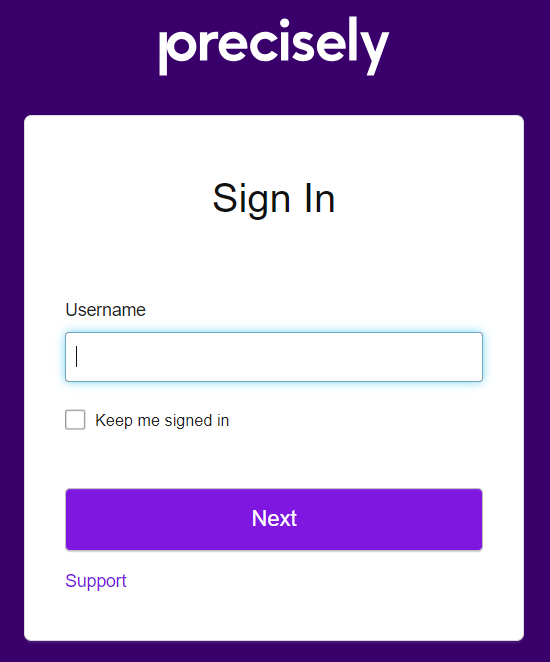
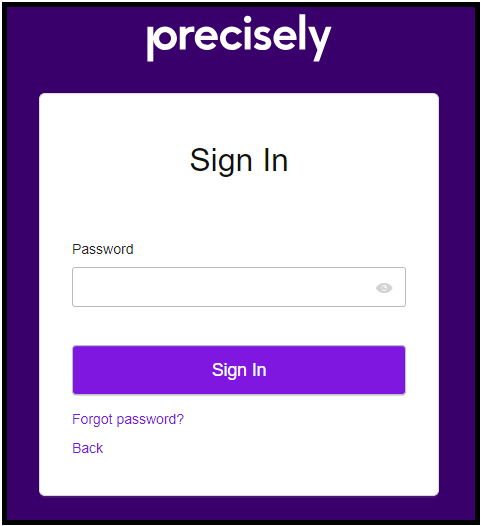
On the next screen, select the "Forgot password?" button:
Select the "Send Reset Link" button in the message :
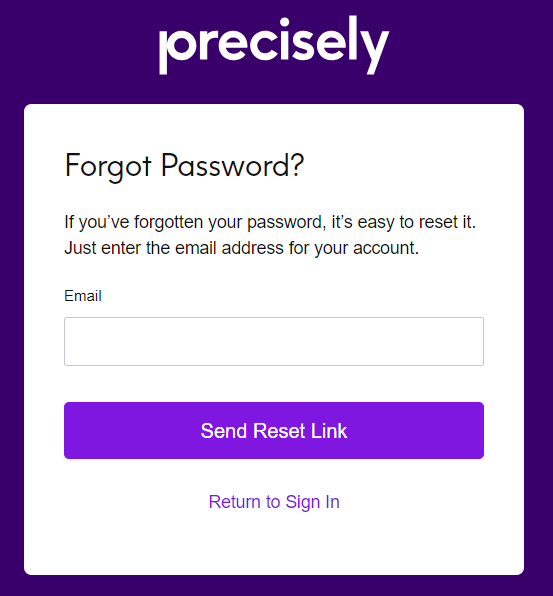
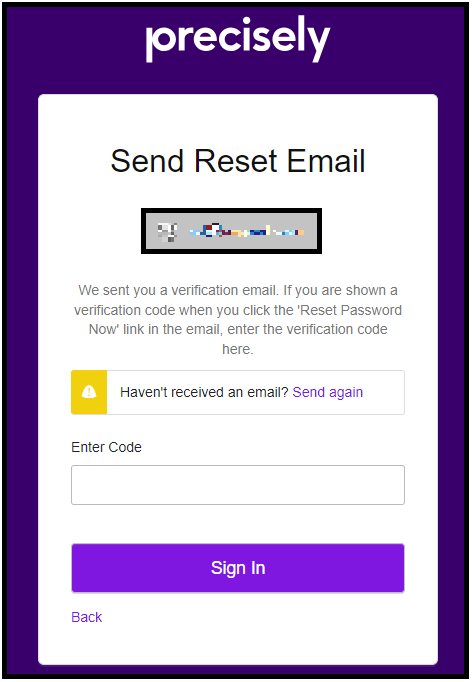
Once you have selected the Send Reset Link button, you will see this screen
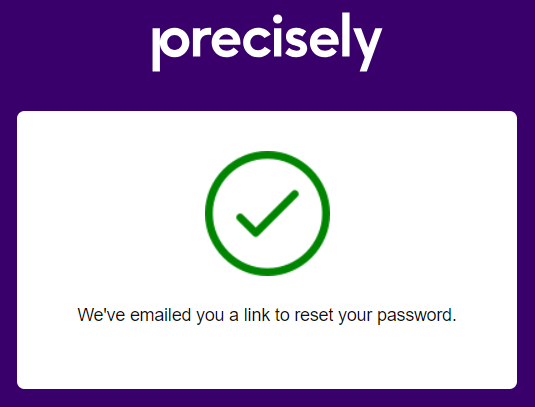
Note, if the password reset email is not opened in the same browser session as the request you will be prompted for a code to input into the original browser session.
Check your inbox for a message with the subject “Reset your password” from Precisely <no-reply@saas.precisely.com> email address. The Reset Password Now link is only valid for 30 minutes.
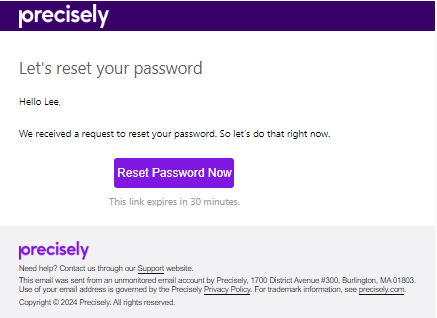
Selecting the "Reset Password Now" button within will create a verification code to be entered on the page described in the prior step:
On the password reset screen, enter a new password – keep in mind the password strength criteria (8 characters, 1 uppercase letter, 1 digit or given special characters ! @ # $ % ^ & ~ ( ) * + , -. / : ; < = > ? are allowed).
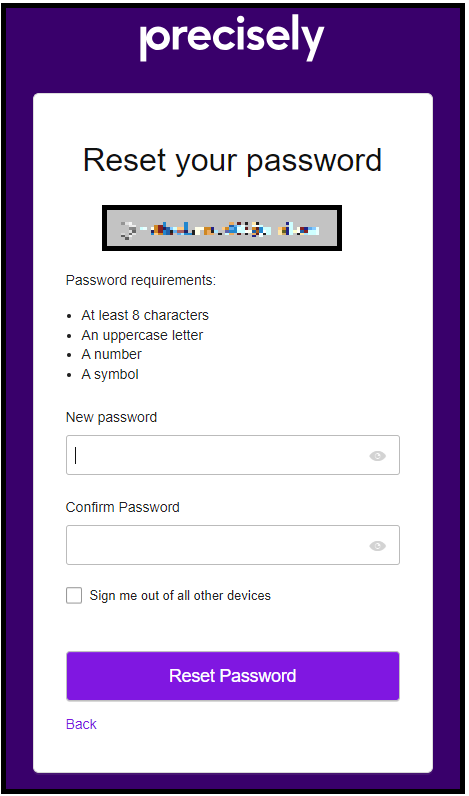
Select the "Reset Password" button.